


































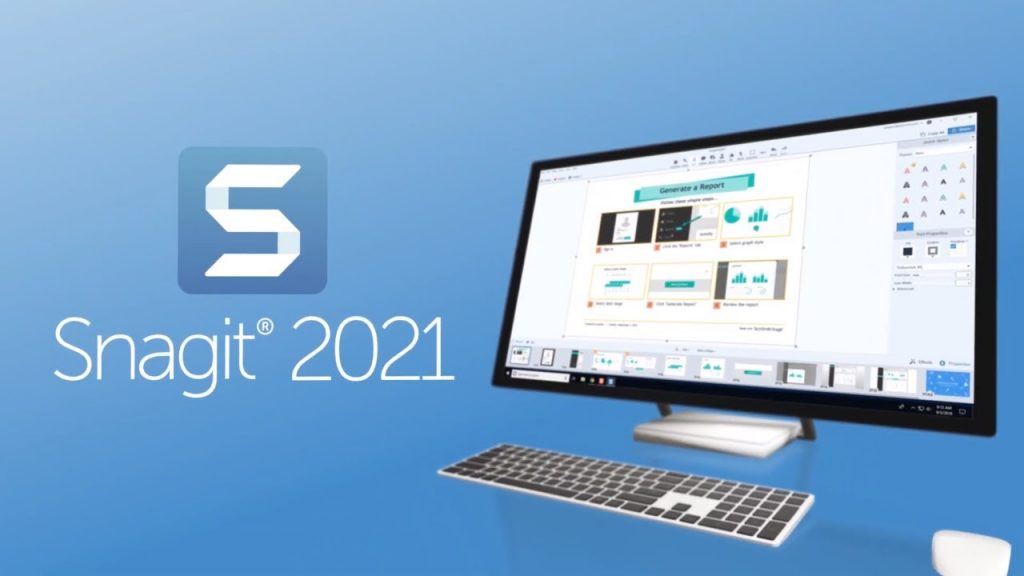
你要向客戶和同事展示,可以使用螢幕快照和視訊錄製進行操作。
旗標您的螢幕快照,修剪視訊或使用模板來建立視覺說明和指南。
取得超過15個共享輸出和一個內建的庫,並具有終身訪問權限,以使您的所有圖像和視訊井井有條。
Snagit的螢幕錄像機可讓您快速記錄自己的工作步驟。或是從錄製的視訊中抓取單個幀。
將您的視訊檔案另存新檔mp4或動畫GIF。
在視訊期間在網路攝像頭和螢幕錄像之間切換。使用記錄器可以與隊友或客戶建立個人風格,無論他們身在何處。通過麥克風或電腦的系統音訊將音訊內含在視訊中。
將任何短記錄(.mp4)轉換為動畫GIF,然後將其快速新增到網站,檔案或聊天中。
Snagit帶有預設和自訂選項,可以每次建立完美的GIF。從螢幕錄像中刪除所有不需要的部分。剪下視訊開頭,中間或結尾的任何部分。
【屏幕截圖和視頻錄製】Snagit 2021 的功能:
下面是安裝Snagit 2021後可以體驗的一些令人驚奇的功能,請記住功能可能會有所不同,並且完全取決於系統是否支援它們。
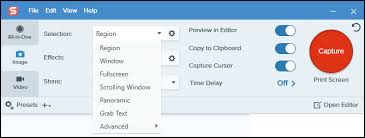
多合一捕獲:
捕獲整個桌面,一個區域,一個視窗或一個捲動螢幕。
全景捲動捕獲:
進行整頁捲動的螢幕快照。 Snagit使抓取垂直和水平捲動,無限捲動網頁,長聊天訊息以及介於兩者之間的所有內容變得簡單。
抓取文字:
從螢幕快照或檔案中提取文字,然後將其快速貼上到另一個檔案中進行編輯。輕鬆複製訊息,而無需重新鍵入所有文字。
螢幕錄像機:
Snagit的螢幕錄像機可讓您快速記錄自己的工作步驟。或是從錄製的視訊中抓取單個幀。將您的視訊檔案另存新檔mp4或動畫GIF。
記錄網路攝像頭:
在視訊期間在網路攝像頭和螢幕錄像之間切換。使用記錄器可以與隊友或客戶建立個人風格,無論他們身在何處。
錄製音訊:
通過麥克風或電腦的系統音訊將音訊內含在視訊中。
GIF動畫:
將任何短記錄(.mp4)轉換為動畫GIF,然後將其快速新增到網站,檔案或聊天中。 Snagit帶有預設和自訂選項,可以每次建立完美的GIF。
修剪視訊剪輯:
從螢幕錄像中刪除所有不需要的部分。剪下視訊開頭,中間或結尾的任何部分。
記錄iOS螢幕:
通過TechSmith Capture App,您只需輕按幾下即可記錄iOS螢幕,然後立即將其共享回Snagit進行修剪。
註解:
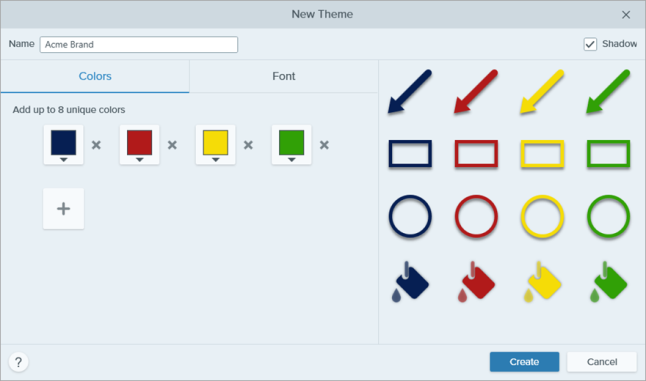
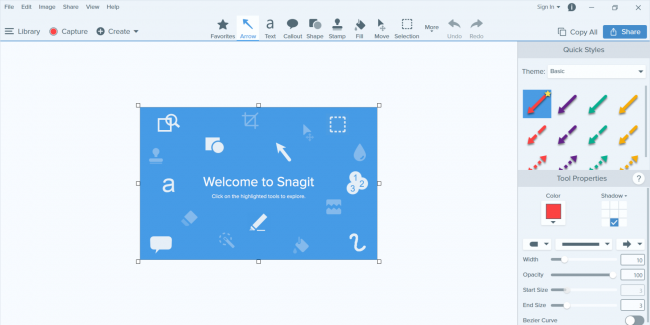
使用專業的旗標工具對螢幕抓圖進行註釋。使用多種預製樣式向您的螢幕快照加入個性和專業精神。或是您可以建立自己的。
步驟工具:
使用一系列會自動增加的數字或字母來快速記錄步驟和工作流程。
明智之舉:
自動使螢幕捕獲中的對象搬移。重新排序按鈕,刪除文字或編輯螢幕快照中的其他元素。
文字置換:
Snagit可以識別螢幕快照中的文字,以進行快速編輯。變更螢幕快照中的文字,字型,彩色和大小,而無需重新設計整個圖像。
簡化工具:
將您的標準螢幕快照轉換為簡化的圖形。
個性化貼紙:
使用專門為螢幕快照設計的貼紙個性化您的圖像。
收藏夾:
將所有最有價值的工具集中在一起。
從模板建立:
使用Snagit內的預製佈局可立即建立可視化檔案,教學和培訓材料。
從圖像建立視訊:
討論並繪製一系列螢幕快照,以建立快速的「操作方法」視訊或GIF。
隨處分享:
直接上傳並共享到PowerPoint,Word,Excel,YouTube,Camtasia等,或直接建立指向螢幕抓取的連結並與任何人共享。
企業共享目的地:
Snagit現在容許您直接共享到Slack和Box。
【屏幕截圖和視頻錄製】Snagit 2021 官網下載:
https://www.techsmith.com/snagit-2021-press-release.html
Show customers and coworkers how to do something with screenshots and videos. Mark up your screenshots, trim your video, or use a template to create visual instructions and guides. Get over 15 sharing outputs and a built-in library with lifetime access to keep all of your images and videos organized. Snagit’s screen recorder lets you quickly record yourself working through steps. Or grab individual frames out of the recorded video. Save your video file as an mp4 or animated GIF.
Toggle between webcam and screen recording during a video. Use the recorder to add a personal touch with teammates or clients, no matter where they are. Include audio in your videos from either a microphone or your computer’s system audio. Turn any short recording (.mp4) into an animated GIF, and quickly add it to a website, document, or chat. Snagit comes with default and custom options to create the perfect GIF, every time. Remove any unwanted sections from your screen recordings. Cut any section at the beginning, middle, or end of your video.
Features of Snagit 2021
Below are some amazing features you can experience after installation of Snagit 2021 please keep in mind features may vary and totally depends if your system supports them.
All-in-One Capture
Capture your entire desktop, a region, a window, or a scrolling screen.
Panoramic Scrolling Capture
Take a full-page, scrolling screenshot. Snagit makes it simple to grab vertical and horizontal scrolls, infinitely scrolling webpages, long chat messages, and everything in between.
Grab Text
Extract the text from a screen capture or file and quickly paste it into another document for edits. Easily copy information without retyping all the text.
Screen Recorder
Snagit’s screen recorder lets you quickly record yourself working through steps. Or grab individual frames out of the recorded video. Save your video file as an mp4 or animated GIF.
Record Webcam
Toggle between webcam and screen recording during a video. Use the recorder to add a personal touch with teammates or clients, no matter where they are.
Record Audio
Include audio in your videos from either a microphone or your computer’s system audio.
Animated GIFs
Turn any short recording (.mp4) into an animated GIF, and quickly add it to a website, document, or chat. Snagit comes with default and custom options to create the perfect GIF, every time.
Trim Video Clips
Remove any unwanted sections from your screen recordings. Cut any section at the beginning, middle, or end of your video.
Record iOS Screen
The TechSmith Capture App lets you record your iOS screen with just a few taps and instantly share it back into Snagit for trimming.
Annotations
Annotate screen grabs with professional markup tools. Add personality and professionalism to your screenshots with a variety of pre-made styles. Or you can create your own.
Step Tool
Quickly document steps and workflows with a series of numbers or letters that automatically increase.
Smart Move
Automatically make objects in your screen captures movable. Rearrange buttons, delete text, or edit other elements in your screenshots.
Text Replace
Snagit recognizes the text in your screenshots for quick editing. Change the words, font, colors, and size of the text in your screenshots without having to redesign the entire image.
Simplify Tool
Convert your standard screenshots into simplified graphics.
Stamps
Personalize your images with stickers specifically designed for screenshots.
Favorites
Keep all of your most valuable tools together in one spot.
Create from Templates
Use pre-made layouts inside Snagit to create visual documentation, tutorials, and training materials in no time.
Create Video from Images
Talk and draw over a series of screenshots to create a quick “how-to” video or GIF.
Share Anywhere
Upload and share directly to PowerPoint, Word, Excel, YouTube, Camtasia, and many more, or create a link directly to your screen grab and share it with anyone.
Enterprise Sharing Destinations
Snagit now lets you share directly to Slack and Box.